I need to learn the basic workflow
Start with the visual setup steps, screenshots, and fairness checklist on the How To page.
Open How ToHelp Center
Find practical answers about using ClickTheWheel for classroom turns, raffle tickets, dinner choices, group prompts, saved wheels, and live sessions.
Most questions come up right before a real spin: what to paste, when to remove a result, what not to show on a public screen, and what proof to keep when the choice matters.
Find the best page
Some questions are easier to answer with a checklist, an example, a policy page, or a full guide. Start with the page that matches what you are trying to do.
Start with the visual setup steps, screenshots, and fairness checklist on the How To page.
Open How ToUse the Before You Spin checklist for entries, duplicates, repeat rules, safe labels, and proof.
Open Before You SpinUse the Examples Library for sample entries, pre-spin wording, removal rules, and proof notes.
Open ExamplesRead the giveaway checklist before loading final entries or drawing multiple winners.
Open Giveaway checklistUse the Privacy Policy for local storage, live rooms, saved wheels, analytics, and advertising details.
Open Privacy PolicyVisual help
These examples show what to check before, during, and after a spin. Use them as a quick guide for giveaways, classrooms, meetings, food decisions, and shared wheel sessions.
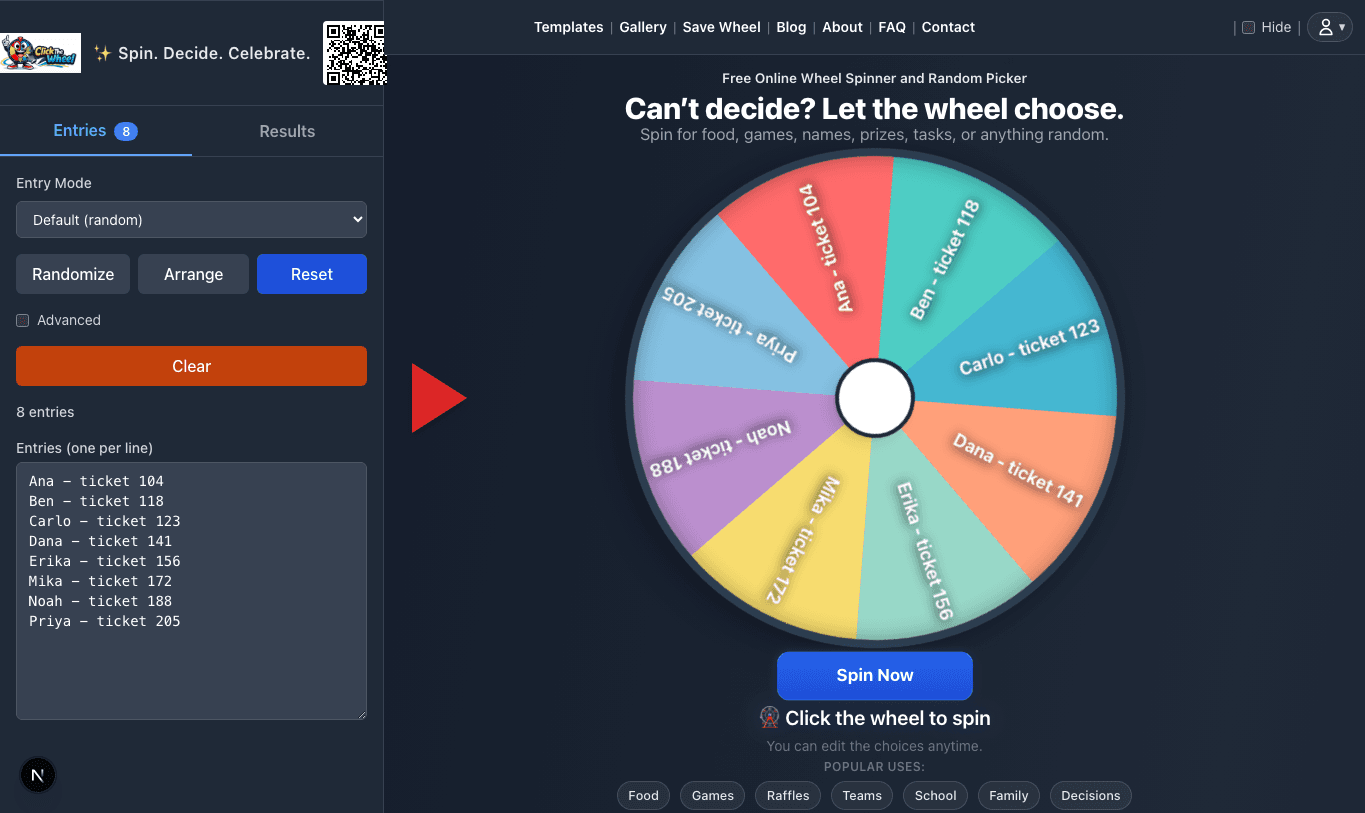
Use this flow when you are preparing names, ticket numbers, prizes, tasks, food choices, classroom prompts, or any list where mistakes would be awkward after the result appears.
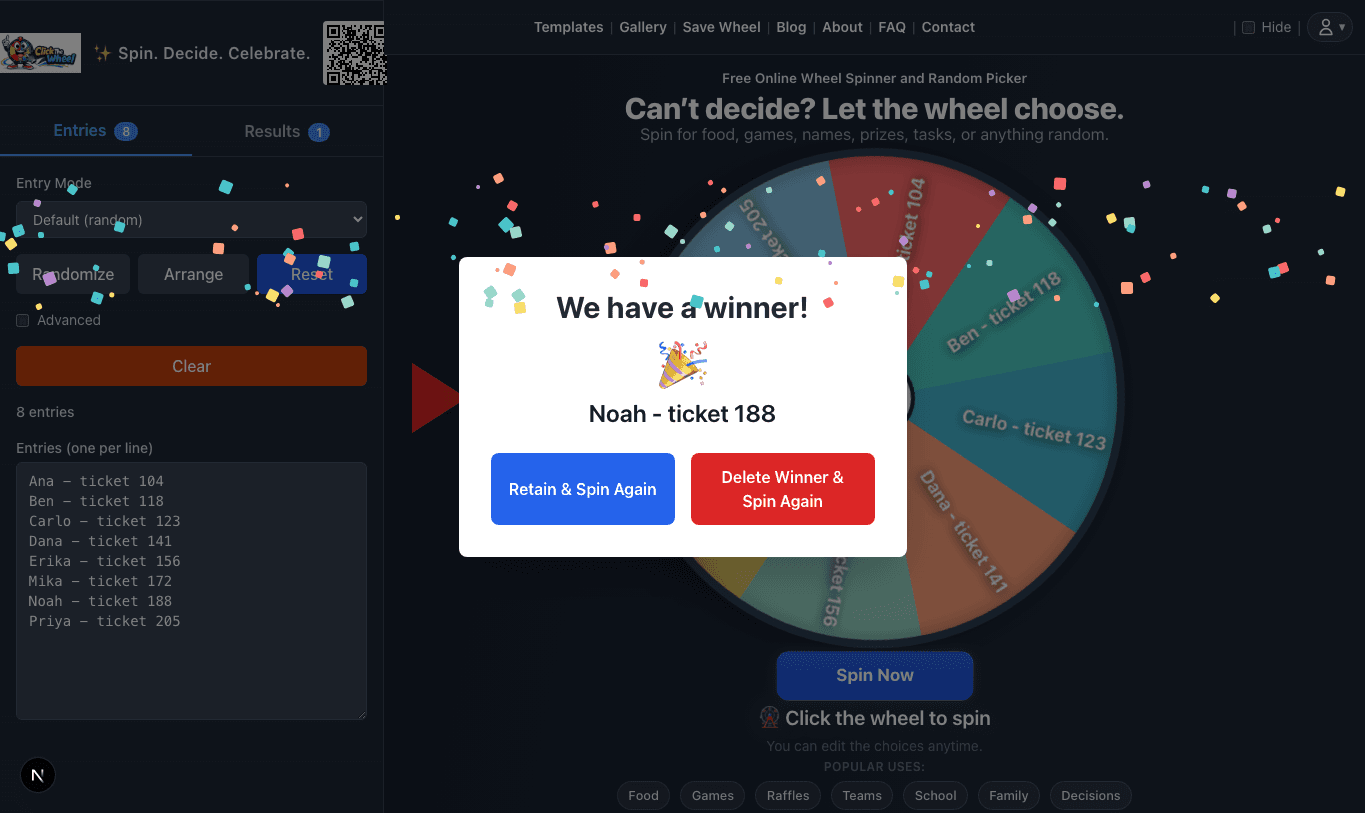
For public choices, the result screen and history make it easier to explain what happened without relying on someone's memory.
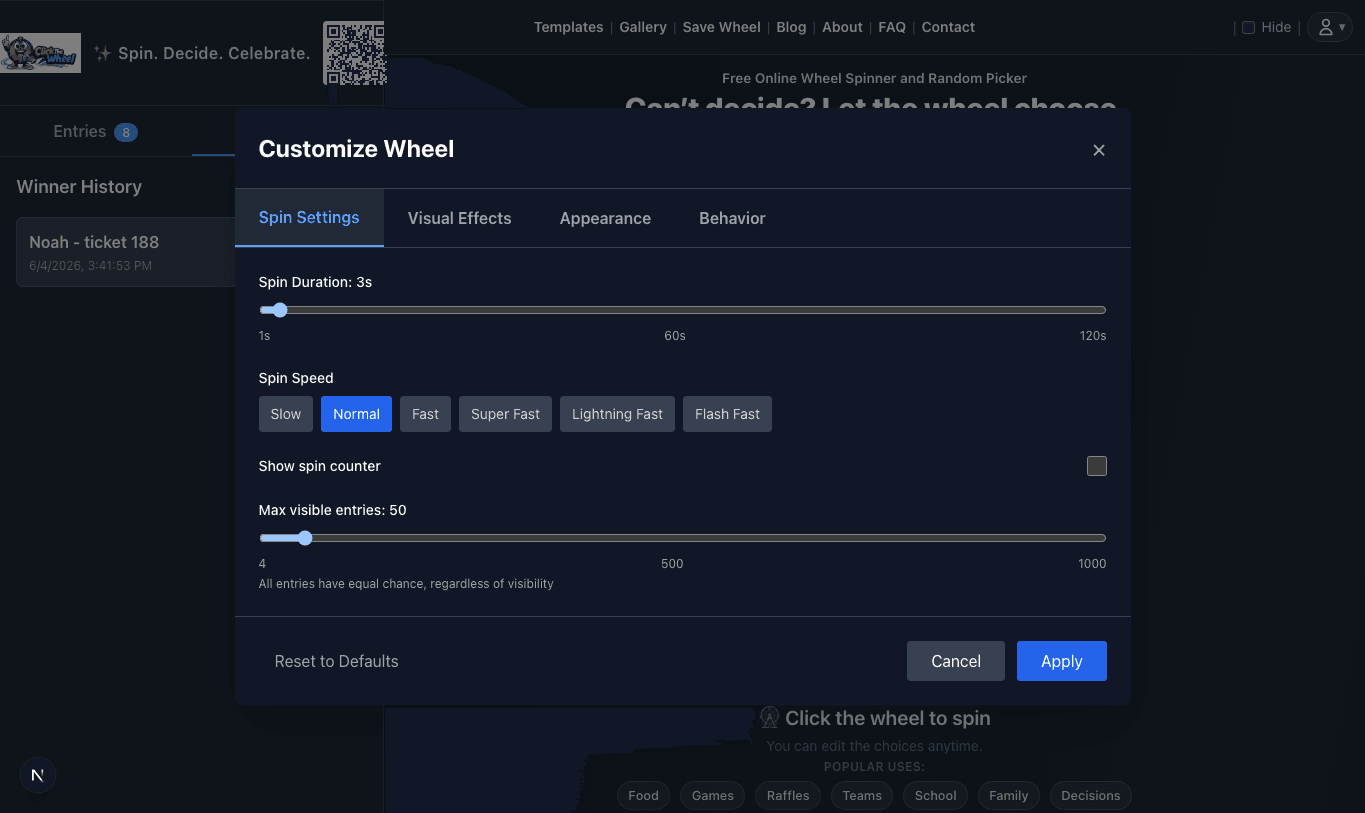
Settings matter most when you are screen-sharing, projecting to a class, or spinning repeatedly for a live group.
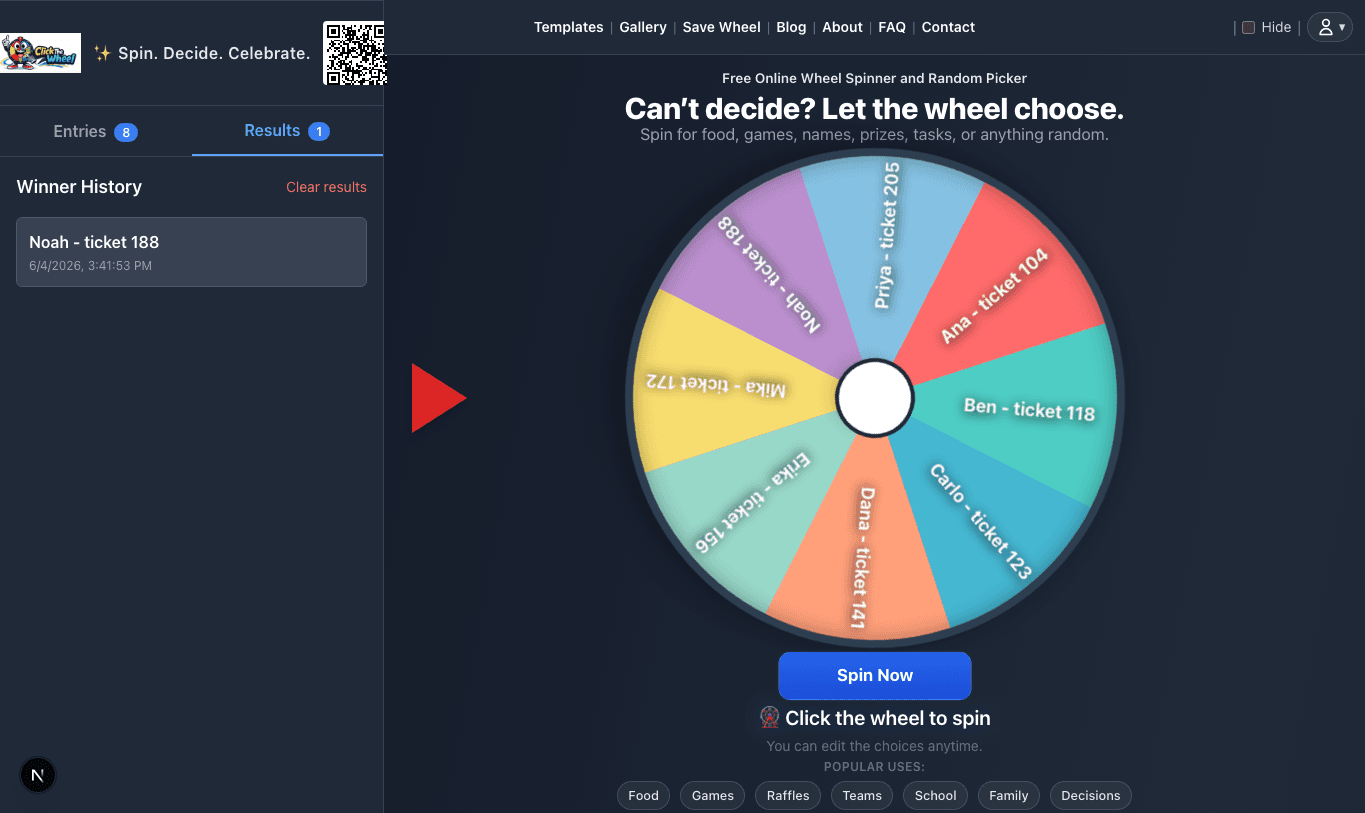
History is helpful for multiple winners, classroom participation, chore rotation, and any workflow where the group may ask who was already picked.
Before you spin
A random wheel feels more useful when the rules, list, and privacy expectations are clear before the result appears. These checks help prevent confusion after the spin.
ClickTheWheel is a browser-based wheel spinner and random picker. You add entries, spin the wheel, and use the selected result for decisions, prompts, names, teams, raffles, classroom activities, or lightweight games. It works best when your list is already narrowed to acceptable choices and the wheel is used to make the final pick visible.
Example: A teacher might add group numbers for a presentation order. A giveaway host might add eligible usernames. A family might add dinner choices that are actually available tonight.
No. Basic spinning works without an account. Sign-in is only needed for account features such as saving wheels to My Wheels, managing saved wheel visibility, or syncing certain progress features across devices.
Yes. The core wheel spinner is free to use. If advertising is shown in the future, it should not block the basic wheel workflow or require ad interaction.
Type one entry per line, review the list for mistakes, then click or tap the wheel to spin. After the result appears, decide whether the selected entry should stay on the wheel or be removed before the next spin.
Example: For a dinner decision, add realistic options such as Pizza, Sushi, Pasta, Rice Bowls, and Cook at Home. Remove unavailable choices before spinning.
Check that every entry is acceptable, labels are readable, blank lines are gone, duplicate entries are intentional, and the group understands whether the selected result will be removed. For public draws, also check the final entry count.
Example: If you copied from a spreadsheet, remove the header row before spinning so Header, Name, or Email does not become a possible result.
ClickTheWheel includes the main random picker, group play modes such as Bingo and party prompts, solo games, challenge wheels, and campaign journeys. Start with the core wheel, examples, how-to, fair draw, privacy, and support pages when you need the clearest guidance.
Use one clear entry per line. Short labels are easier to read on the wheel, especially when screen-sharing or projecting the result. Remove blank lines and fix inconsistent names before spinning.
Example: Good: Mia, Jay, Team Blue, Prize 3, Review Question 12. Harder to read: long sentences, duplicate nicknames, or labels that only the host understands.
Yes. Paste one item per line from a spreadsheet, document, or exported list. Check the count and formatting before a public draw.
Example: If a spreadsheet has 84 eligible entries, the wheel should also show 84 entries after cleanup. If the count is different, look for merged cells, blank rows, or copied headers.
Yes. In the Entries tab, use Copy List or Export CSV to keep the current wheel entries before an important spin. This is useful for giveaways, classroom rotations, office raffles, and any situation where someone may ask what was on the wheel before the result appeared.
Use as many as the situation needs, but keep the wheel readable for the audience. Very large lists work better when the result is the only thing people need to see. If the audience must inspect every entry, split the list into smaller rounds or use IDs instead of long labels.
Example: For a 400-person giveaway, public usernames or ticket IDs are better than long names plus notes. For a classroom projector, 20 to 40 short labels are easier to read than full sentences.
Remove winners when each person, ticket, team, task, or prize should be selected only once. Keep entries when repeats are allowed, such as food choices, party prompts, or reusable study tasks.
Repeated results can happen when entries stay on the wheel. A random picker does not remember past results unless you remove selected entries or use a workflow that tracks winners. If repeats are not allowed, remove the winner after each spin.
Shuffling can make the wheel look fresh, but fairness mainly depends on the final entry list and duplicate rules. If each eligible entry appears once, the order of the list is less important than whether the list is clean and complete.
Yes, but only use duplicates intentionally. Duplicate lines increase that label's chance of being selected. For a fair giveaway or classroom pick, clean duplicates unless your rules allow weighted entries.
Result history proves what was selected after the spin. It does not prove that the original source list was complete, that every entry was eligible, or that duplicates were handled correctly. For public draws, keep the source list, cleanup notes, final count, winner modal, and result history together.
Yes. After at least one result is recorded, open the Results tab and copy the report, download a plain report, or export a CSV. The report includes the wheel title, export time, current entry count, result summary, result history, and notes about keeping your source list with the export.
Winner selection uses the browser cryptographic random API when it is available. If a browser does not provide that API, the app falls back to normal browser randomness. The wheel is still meant for visible low-stakes random selection, not regulated lottery certification.
No. ClickTheWheel is a browser-based random picker for visible, low-stakes selections where your rules allow a wheel spinner. It should not be treated as a certified lottery system, legal audit tool, or regulated prize-draw platform.
Use the wheel for decisions where every listed option is already acceptable. Do not use it as a replacement for judgment in sensitive areas such as hiring, discipline, medical choices, legal decisions, or safety-related decisions.
Yes. Teachers can use it for participation order, review prompts, group roles, brain breaks, vocabulary practice, or classroom jobs. Use first names or safe labels on a projected screen.
Spin for prompts, table groups, seat numbers, or partner turns instead of full names when the activity feels high-pressure. Add a pass, hint, partner help, or retry rule before the first spin.
Example: Instead of spinning for Ava to answer immediately, spin for Review Question 4 and let table groups discuss it for 30 seconds.
Yes, if your giveaway rules allow a random picker. Prepare a clean final list, explain duplicate and eligibility rules, record or screenshot the result when proof matters, and remove winners between prizes when repeat wins are not allowed.
Say the final entry count, the duplicate rule, whether winners are removed, the prize order, and what happens if a winner cannot claim. A short example is: This is the final eligible list, each entry can win once, and I will remove each winner before drawing the next prize.
Yes. Add realistic meal, cuisine, restaurant, or snack options. Remove choices that are closed, too expensive, unavailable, or unsuitable before spinning.
Yes. Teams can use the wheel for speaker order, light icebreakers, demo order, retro prompts, coffee raffles, or role rotation. Avoid sensitive assignments, sign-offs, performance decisions, or incident response decisions.
Yes, for low-stakes viewer prompts, giveaway picks, game challenges, or chat participation when your platform rules allow it. Use public usernames or viewer IDs, announce claim rules before spinning, and keep private shipping or payment details outside the wheel.
Save to My Wheels stores a wheel in your account so you can reuse it later. This is helpful for recurring class lists, weekly chores, team rotations, recurring raffles, or repeated meeting prompts.
You choose the visibility. Private wheels are meant for your own account. Public wheels may appear in Community Wheels, so avoid publishing private names, emails, student data, or sensitive lists.
Avoid private emails, phone numbers, addresses, student records, grades, behavior notes, payment details, passwords, private room codes, client data, or anything the audience does not need to see. Use safe labels such as ticket numbers, group names, public usernames, or first names when possible.
Basic wheel entries, settings, and results can be stored in your browser so the app works smoothly. Account, live sharing, public Gallery, and feedback features may store data with the service provider described in the Privacy Policy.
Local wheel data can be cleared through your browser's site data or storage settings. If you use saved wheels, live sessions, public wheels, or feedback, those features may also involve account or server-backed storage described in the Privacy Policy.
ClickTheWheel may use Google Analytics 4 for aggregate measurement, configured so wheel labels, winner text, and room codes are not intentionally sent as analytics parameters. If ads are enabled later, advertising technologies are explained in the Privacy Policy.
Ads should stay separate from the Spin Now button, wheel controls, entry editor, result modal, save/share controls, and navigation. Visitors should never be asked to click ads or made to think an ad is part of the wheel result.
A host can create a live session and share a link, QR code, or room code. Guests can follow the session from their own devices. The host should explain rules before spinning and avoid sharing sensitive data in public rooms.
Share only the information other people need. For public audiences, use a wheel with safe labels. For private recurring lists, save the wheel privately and avoid posting the link where strangers can access it.
Try reducing visual effects, shortening the entry labels, closing other heavy browser tabs, or using a smaller entry list. Very large lists are better for final selection than for long screen-share demonstrations.
Example: For a live event, test the wheel with the projector, screen share, or mobile device before participants join. If the animation feels heavy, simplify labels and effects first.
Test the same device, browser, projector, screen share, or stream setup you plan to use. Confirm that labels are readable, the Spin Now button works, the result modal is visible, and the result history appears after a spin.
Example: For an event raffle, do one private test with sample entries before guests arrive, then reload the final clean list before the real draw.
Pause before spinning. Fix the source list or wheel entries first, then explain the correction if people already saw the previous count. Do not silently edit a public draw list after the rules were announced.
Include the page URL, what you were trying to do, what happened, your device and browser, and whether the wheel was local, saved, public, private, or part of a live session. Avoid sending private entries unless necessary.
Use the contact page and include the page URL plus the section that needs attention. Corrections for guides, FAQ answers, privacy wording, examples, and setup notes are welcome.