How to Use ClickTheWheel — Free Online Wheel Spinner Guide

ClickTheWheel is a simple online wheel spinner that helps you make random choices. You can use it as a name picker, food picker, decision wheel, raffle wheel, classroom picker, team picker, prize wheel, or party game wheel. It also works as a word spinner for vocabulary practice, writing prompts, icebreaker words, and quick idea selection.

Quick Start Guide - How to Use ClickTheWheel

📝
1

Step 1: Add your choices

Type your names, food options, tasks, prizes, teams, words, prompts, or ideas into the wheel entries (one per line). You can paste a list from a spreadsheet or document so each line becomes an entry on your free online wheel spinner or word spinner.

🎨
2

Step 2: Customize your wheel

Use Wheel Settings to pick color schemes, spin speed, sound, and effects. Edit your choices to match your classroom, meeting, raffle, party, or decision-wheel activity.

🎯
3

Step 3: Spin the wheel

Click or tap the wheel to spin. ClickTheWheel will randomly select one result from your choices—useful as a random name picker, food picker wheel, prize wheel, or classroom picker online.

🏆
4

Step 4: Use the result

Use the selected result for your game, raffle, classroom activity, food choice, team assignment, task, or decision. Check the Results tab for history when you need a record of past spins.

💾
5

Step 5: Save or share when available

When saving or sharing is available, keep your custom wheel for later or share it publicly so others can try it. Saved wheels help you reuse setup for recurring giveaways, classes, or meetings.

What Can You Use ClickTheWheel For?

Use ClickTheWheel when a visible random choice helps a group move forward. The examples below explain what to paste, what to announce before spinning, and when to record or remove results.

Contests & Giveaways

Paste a cleaned participant list, announce duplicate and removal rules, show the entry count, and record the winner result when participants need proof. This works for social media giveaways, YouTube prize drawings, raffle selections, and small promotional campaigns.

Social media giveawaysInstagram contestsYouTube prize drawingsRaffle selectionsPromotional campaignsSweepstakes

Decision Making

Use a wheel for low-stakes choices where every option is acceptable: restaurants, activities, movies, destinations, or household plans. Write clear options, spin once, and agree before spinning whether the result is final.

What to eat tonight?Which movie to watch?Where to go this weekend?What activity to do?Which restaurant?What to cook?

Team Selection

Add team members, presenters, or roles one per line, then remove selected names if everyone should get one turn before repeats. It is useful for classrooms, sports teams, work groups, meetings, and group activities where visible turn-taking matters.

Classroom activitiesTeam assignmentsMeeting facilitatorsSports team selectionGroup projectsPresentation order

Games & Entertainment

Build a wheel of prompts, mini-games, turns, or challenges before the gathering starts. Keep entries short, avoid prompts that embarrass people, and use the result history if you need to track who already played.

Party gamesTruth or dareChallenge selectionIce breakersFamily game nightTrivia night

Business & Professional

Use the wheel for meeting order, workshop prompts, presentation order, random sampling, or light team activities. For sensitive work decisions, use judgment and policy rather than randomness alone.

Random samplingPresentation orderWorkshop activitiesMeeting topicsTraining exercisesProfessional decisions

Personal Planning

Break work into small tasks, habits, or focus blocks, then spin when you are stuck choosing what to start. Keep each entry specific enough that you can act on it immediately.

Daily task selectionHabit trackingGoal prioritizationDaily routinesProductivity planningLife decisions

Education & Learning

Use classroom wheels for student turns, discussion topics, reading order, review prompts, or learning games. Add pass, hint, or partner options when the activity might feel high-pressure.

Student selectionDiscussion topicsReading assignmentsVocabulary wordsQuiz questionsLearning games

Yes/No Decisions

Use Yes/No mode for small binary choices where both outcomes are acceptable. Decide what yes and no mean before spinning, then let the pointer result settle the moment.

Settle debatesQuick decisionsBinary choicesYes or noThis or thatSimple choices

Travel & Tourism

Plan your travel itinerary with a random wheel of activities, transport options and budget tiers to reduce decision fatigue and make exploring fun and fair.

Daily itinerary planningActivity selectionTransport choiceRestaurant picksSightseeing orderBudget & pace decisions

Friends & Social

Use a hangout wheel to decide group activities, meals and locations; random selection avoids group bias and keeps everyone happy.

Group hangoutsFood choicesActivity planningMovie nightsRoad tripsSocial gatherings

Family & Household

Rotate family chores and fun activities fairly with a decision wheel; kids stay engaged and everyone shares responsibilities.

Family gamesChore assignmentsMeal planningWeekend activitiesHousehold tasksRewards

Health & Fitness

Pick daily wellness activities like workouts, hydration reminders and recovery routines randomly to stay motivated and beat decision fatigue.

Workout focusQuick home exercisesHealthy habitsRecovery routinesMeal focusSteps goals

Pets & Animals

Create a pet training wheel with commands and enrichment games; random rotation keeps sessions varied and balanced.

Training commandsPlay activitiesGrooming tasksEnrichment ideasWalk routesToy rotation

Creative & Content

Break a creative block by spinning for one prompt, word, hook, editing task, or post idea at a time. Remove ideas that do not fit the audience before you start.

Video topicsBlog post ideasSocial media hooksPrompt wordsEditing tasksCTA prompts

Sports & Recreation

Use a warm‑up and drill wheel to rotate sports exercises fairly, helping teams train evenly and reduce bias.

Warm‑up drillsScrimmage rolesSkill focusCooldown exercisesTeam positionsSession goals

Study & Learning

Use a study wheel for topics, practice methods, flashcard rounds, and short breaks. Keep the list tied to today’s material so the result is immediately useful.

Subject selectionStudy methodsPomodoro tasksBreak activitiesExam prepReward ideas

Business & Operations

Triage incidents, categorize tasks and prioritize workflows fairly using a severity or task wheel to eliminate bias and improve decisions.

Incident severityTask triageRoot cause analysisApproval gatesReadiness checklistsMeeting outcomes

Holidays & Celebrations

Plan holiday activities and gift exchanges with wheels; random pairings and ideas make celebrations more exciting and fair.

Secret Santa pairingsGift themesHoliday activitiesMeal directionsParty themesGoal setting

Kids & Parenting

Engage children with a wheel of arts, games, chores and learning activities; random selection reduces parental decision fatigue and adds fun.

Kids activitiesChoresRewardsLearning gamesOutdoor playBedtime routines

Tips & Tricks for Maximum Effectiveness

✨ Special Features

  • Use "Yes" and "No" entries for authentic binary decisions with special pointer-based selection
  • Enable auto-remove to eliminate winners automatically after each spin
  • Use lighter confetti for classrooms and meetings, and stronger effects for prize moments
  • Adjust spin speed to match the energy level of your event or occasion
  • Use real-time sharing for collaborative decision-making across devices
  • Track all winners in the Results tab with timestamps for fairness verification

💡 Pro Tips

  • Save time by pasting entire lists directly into the text area - no need to type each entry
  • Use the Results tab to track all winners over time and ensure fair distribution
  • Hide the left panel for a full-screen wheel experience on desktop
  • Choose high-contrast colors when screen-sharing or projecting the wheel
  • Use Randomize to shuffle entries for a fresh perspective
  • Bookmark your customized wheel for quick access to your favorite configurations

🚀 Advanced Usage

  • Create multiple wheels for different purposes and switch between them
  • Use the sharing feature for remote team activities and virtual events
  • Keep the source spreadsheet when a raffle or giveaway needs later verification
  • Copy your entries list before clearing or resetting a large wheel
  • Use winner removal for progressive narrowing of options
  • Customize spin duration for a quick classroom turn or a slower prize reveal

What ClickTheWheel Helps You Control

🆓

No account for basic spins

Open the page, paste entries, and spin without signing in.

🎨

Readable setup

Keep entries visible, adjust colors, and choose settings that fit the room.

📱

Works across screen sizes

Use the wheel on phones, tablets, desktops, projectors, or a shared call.

🔒

Local by default

Basic wheel entries stay in the browser unless you use saving or sharing features.

Ready to Start Using ClickTheWheel?

Start with a short list, check that every entry is valid, and spin. For giveaways or public events, show the entry count, announce the rules, and keep the result visible long enough to record.

✓ Free Forever✓ Unlimited Spins✓ No Account Required✓ Works on All Devices✓ Privacy Protected

Visual how-to

Follow the wheel spinner from setup to result

These screenshots show the actual ClickTheWheel flow. Use the same steps for names, raffle entries, classroom prompts, food choices, team roles, or a word spinner list for vocabulary, writing prompts, and idea generation.

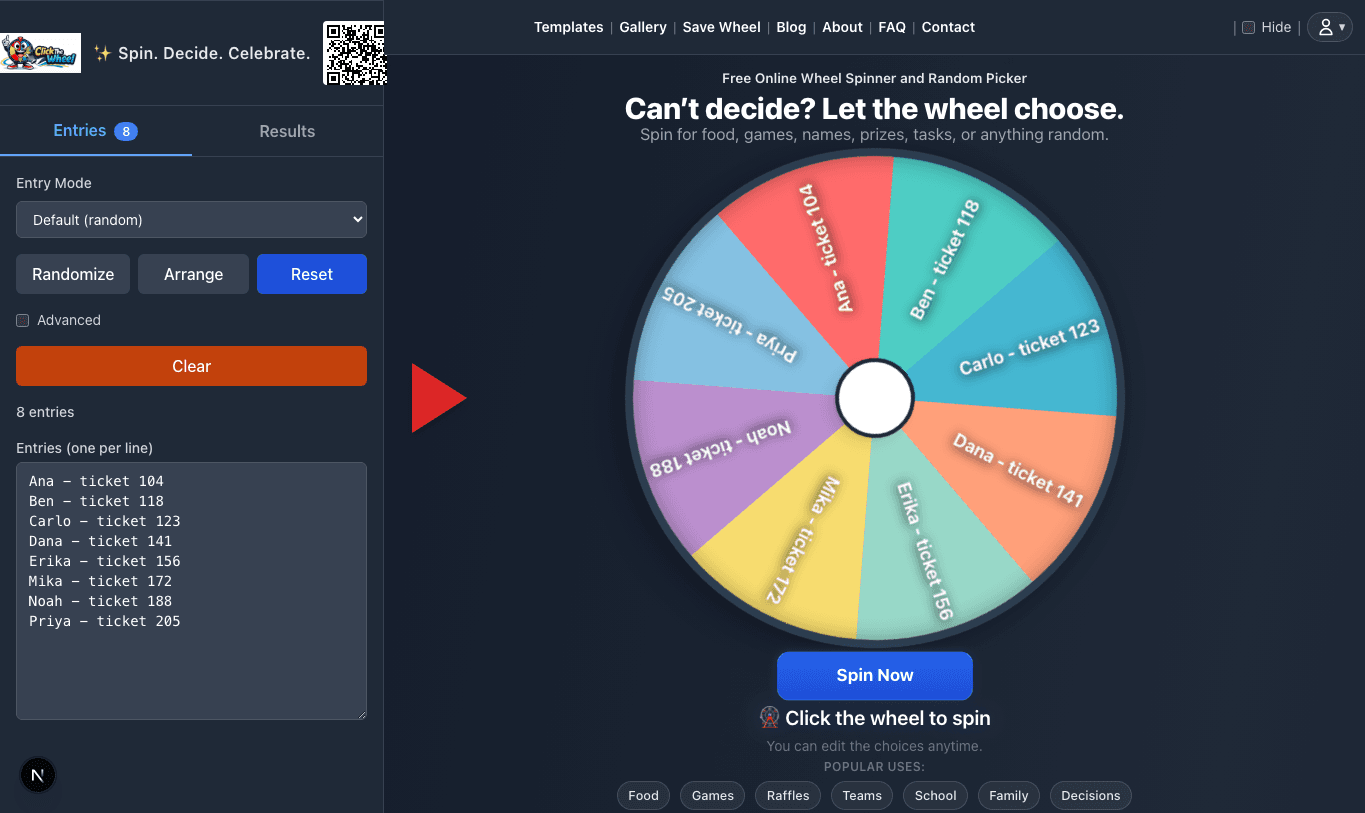
ClickTheWheel entries panel beside a wheel before a giveaway spin

1. Prepare entries before the spin

Paste one entry per line, check the count, and make sure the wheel labels are readable before participants watch the draw.

Use this view to clean names, words, prompts, prizes, tasks, or choices before the wheel spinner starts.

Check before continuing

  • One entry per line
  • No accidental blanks
  • Duplicates are intentional
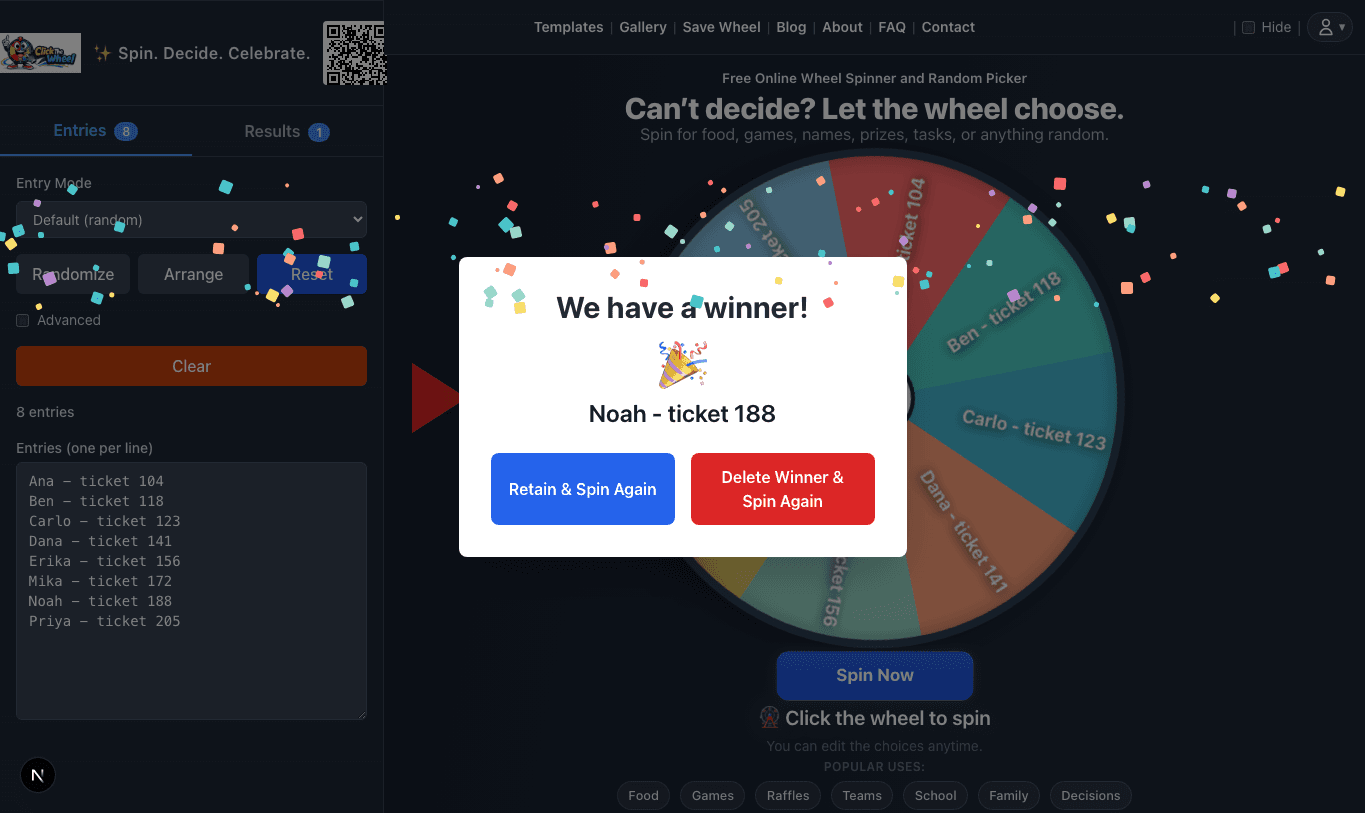
ClickTheWheel winner modal after a spin with confetti

2. Show the result clearly

The winner modal keeps the selected entry visible long enough for a host, class, stream, or meeting to read and record it.

Use this moment to announce the selected result and decide whether to remove it before the next spin.

Check before continuing

  • Result is readable
  • Host reads it aloud
  • Next-step rule is clear
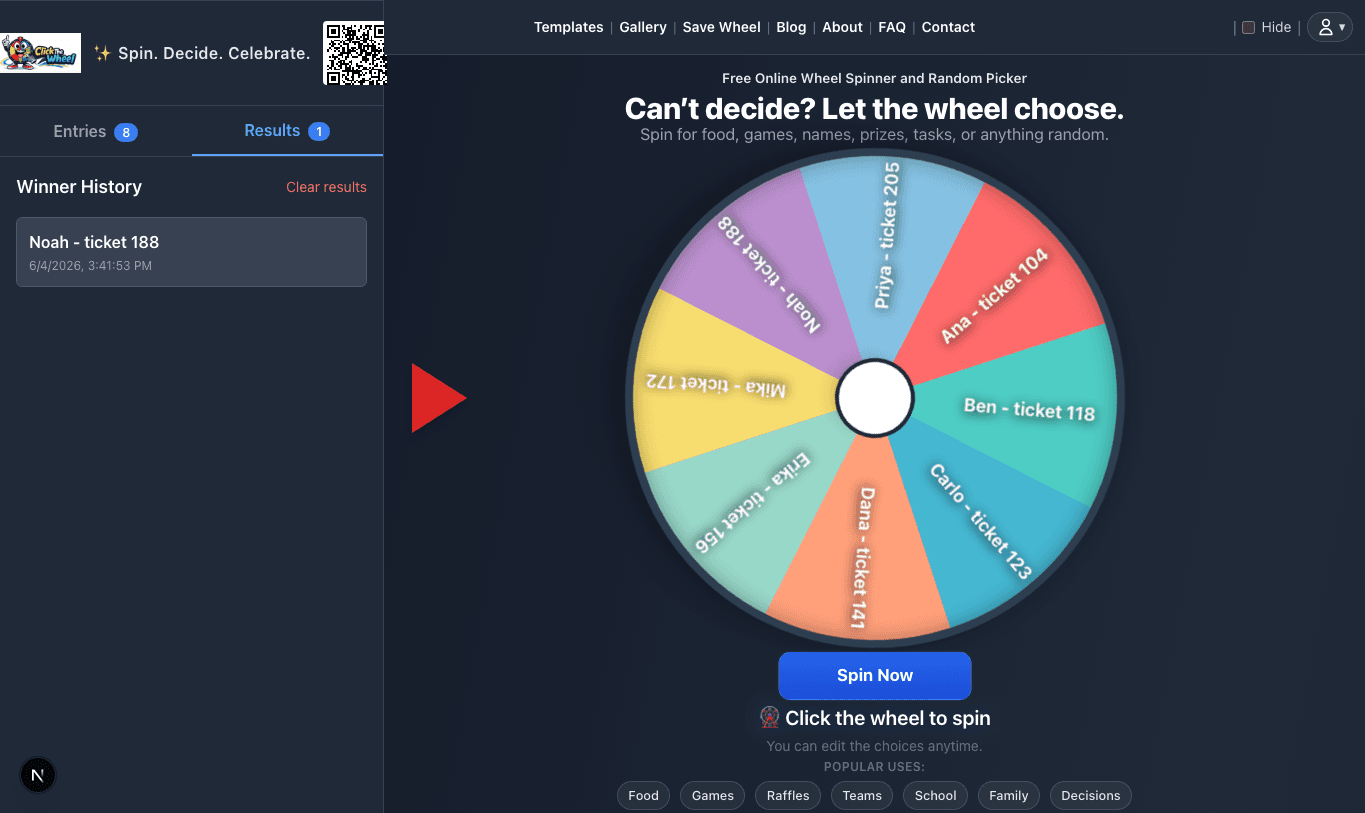
ClickTheWheel result history showing a selected winner

3. Keep a simple winner history

Use the results tab when you need a quick record of previous spins, especially for multiple winners or classroom turns.

Use history for multi-winner raffles, classroom rotations, team roles, or repeated word spinner prompts.

Check before continuing

  • Previous picks visible
  • Repeats handled
  • Final list can be saved
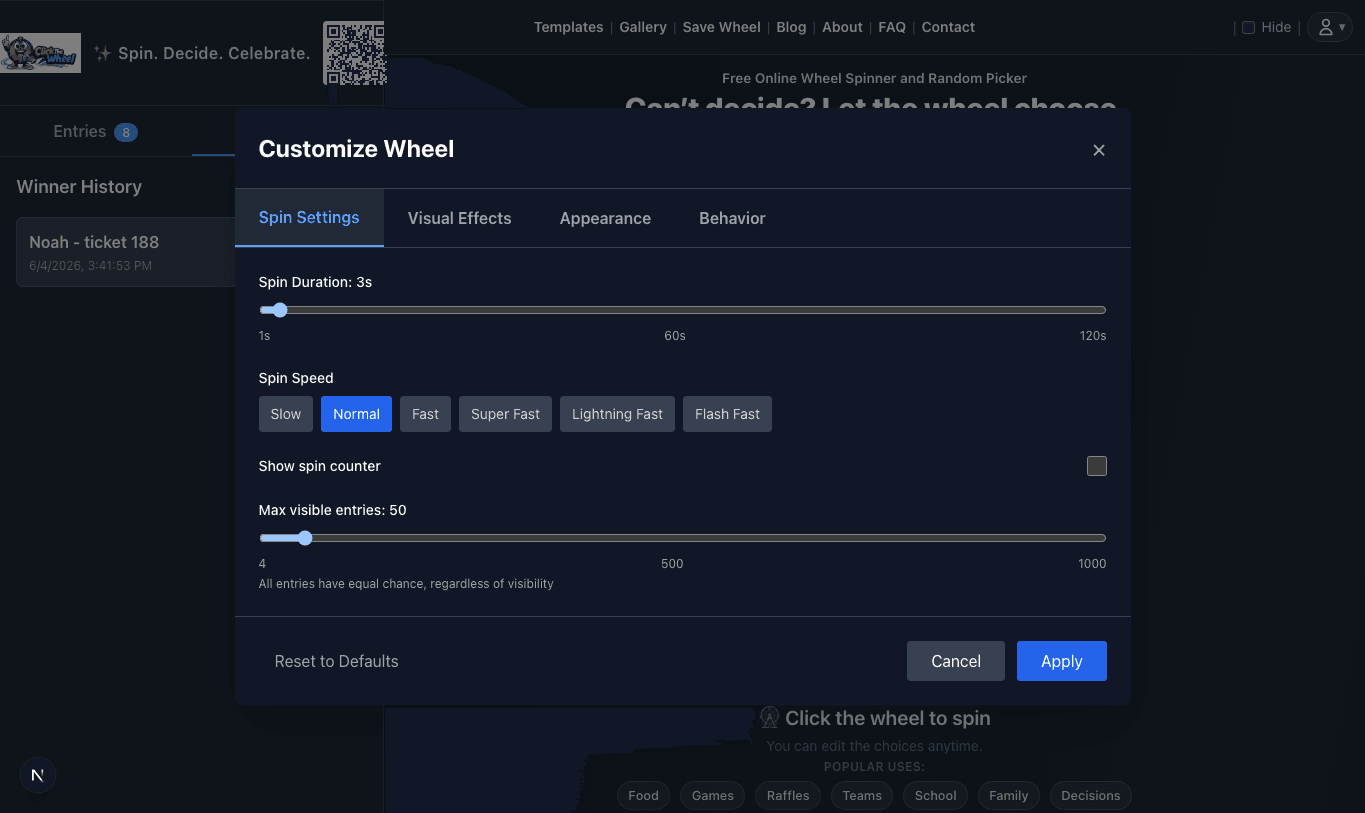
ClickTheWheel settings panel showing spin duration, speed, and visible entry controls

4. Adjust settings for the room

Tune spin duration, speed, visible entries, effects, and behavior so the wheel feels right for a lesson, raffle, meeting, or party.

Use settings before public spins so the wheel is smooth, readable, and appropriate for the audience.

Check before continuing

  • Spin length fits the activity
  • Effects fit the room
  • Labels are visible

Three complete example setups

Classroom name picker

  1. Paste one student name per line.
  2. Explain whether names are removed after a turn.
  3. Spin for low-pressure participation, review questions, or classroom jobs.
  4. Use the result history to avoid calling on the same student repeatedly.

Giveaway or raffle draw

  1. Clean the entry list before opening the wheel.
  2. Show the final count and rules before spinning.
  3. Record the screen if participants need proof.
  4. Remove winners between spins when repeat wins are not allowed.

Work meeting wheel

  1. Add presenters, prompts, team roles, or demo topics.
  2. Keep labels short so the wheel is readable on screen-share.
  3. Use a shorter spin for routine meetings and a longer spin for raffles.
  4. Share the result aloud so remote participants do not miss it.

Word spinner for prompts

  1. Add vocabulary words, story starters, debate terms, or writing prompts.
  2. Keep each word or phrase short so it stays readable on the wheel.
  3. Spin once, then ask students or participants to use the selected word.
  4. Remove used words if the activity should cover every prompt once.

What to show on screen

For casual decisions, the wheel alone is enough. For classrooms, giveaways, meetings, and events, show the entries before spinning, keep the result visible long enough for people to read it, and capture the result history when you need a record. If you are screen-sharing, make the browser window large enough that the labels and winner modal are readable.

Fairness checklist

  • One valid entry per line unless weighted entries are intentional.
  • Duplicate, reroll, and removal rules are explained before the spin.
  • Private data is replaced with safe labels for public draws.
  • Important spins are recorded or screenshot with the result visible.
  • The host does not change the list after participants approve it.

Mistakes to avoid

Small setup mistakes that make wheel results feel unfair

The wheel can only be as useful as the list and rules behind it. These are the problems to fix before a classroom, giveaway, meeting, stream, or group activity depends on the result.

Spinning before the list is final

Fix: Review entries, remove invalid choices, and show the final count before a public draw, classroom pick, or meeting assignment.

Using private data on a shared screen

Fix: Use ticket numbers, first names, team names, or safe labels instead of emails, addresses, full student details, or private notes.

Forgetting the repeat rule

Fix: Decide in advance whether the selected item stays on the wheel. Remove winners for unique prizes, turns, roles, or pairings.

Treating the wheel as judgment

Fix: Use random selection only when every listed option is acceptable. Keep sensitive decisions out of the wheel.